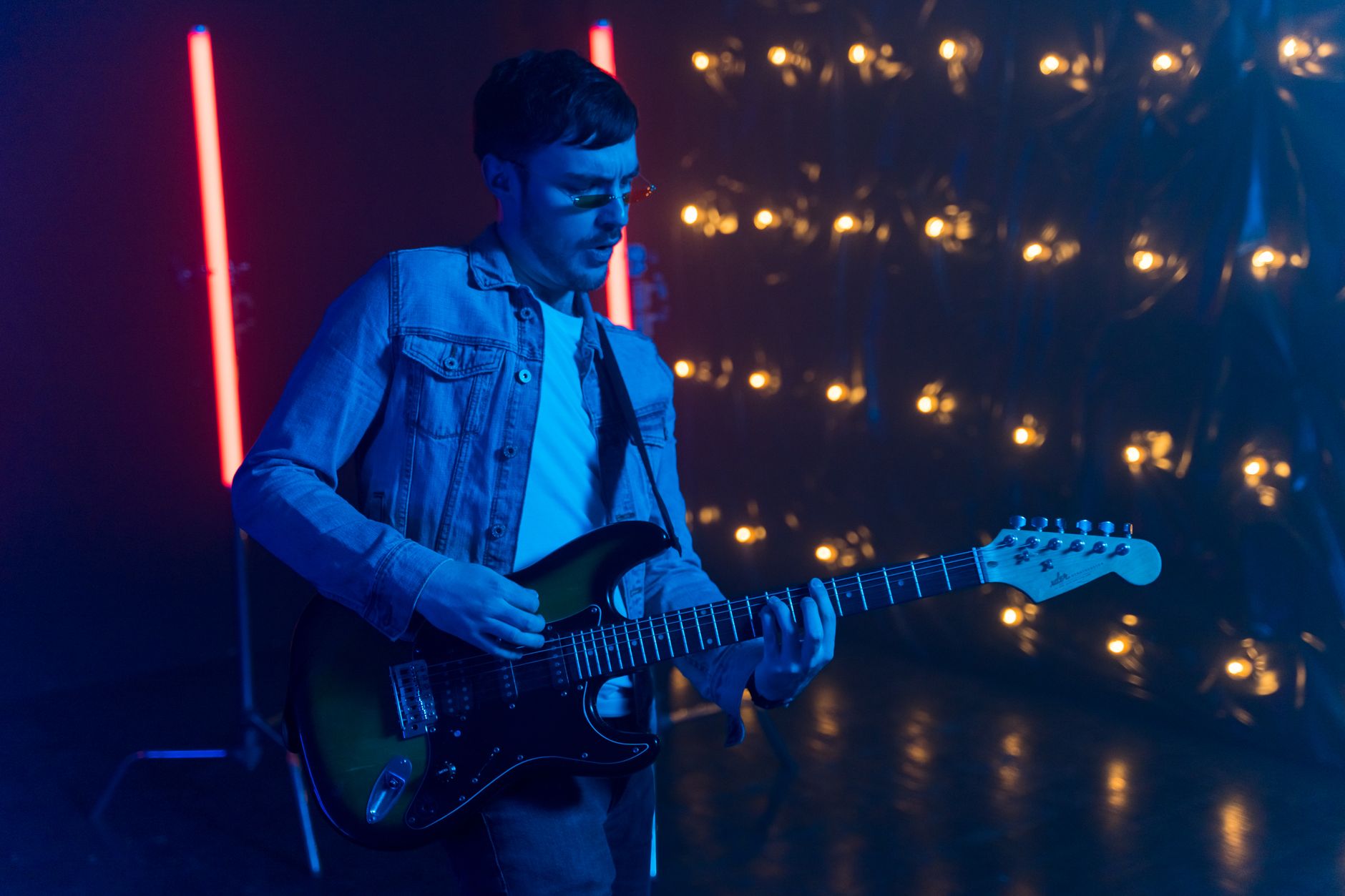
Instrumental breaks—guitar solos, drum fills, synth interludes—are where songs breathe. They create contrast, build tension, and give listeners a moment to absorb what came before. In Suno v6, adding an instrumental section takes more than hoping the AI reads your mind. You need to write explicit instructions in your lyrics and style prompt.
This guide walks through the exact steps to add instrumental breaks, solos, and non-vocal sections in Suno v6. You'll learn which tags work, how to structure your lyrics, and what to put in the Style of Music box to get the break you want.
Use the [Instrumental] Tag in Your Lyrics
The most reliable way to add an instrumental break is to place the [Instrumental] tag on its own line in the lyrics box. Suno's help documentation doesn't officially define bracketed tags, but the community has used them since early versions, and v6 continues to recognize them most of the time.
Place the tag where you want the break to occur. If you want a guitar solo after the second chorus, your lyrics might look like this:
[Verse 1]
First verse lyrics here
[Chorus]
Chorus lyrics here
[Verse 2]
Second verse lyrics here
[Chorus]
Chorus lyrics here
[Instrumental]
[Bridge]
Bridge lyrics here
Leave the line after [Instrumental] blank. Don't write placeholder text like "solo here" or "guitar break"—Suno reads the lyrics box literally, and it may try to sing those words.
The [Break] tag works similarly and often produces shorter instrumental moments. Use it for drum fills, transitions, or quick pauses between sections. Both tags are community practice, not guaranteed syntax, so test them and regenerate if the first take doesn't deliver.
Specify the Instrument in Your Style Prompt
The [Instrumental] tag tells Suno to stop singing. It doesn't tell Suno what to play. If you want a specific instrument to lead the break, write it in the Style of Music box.
Examples of effective style prompts for instrumental breaks:
- "blues rock, wailing guitar solo, distortion, pentatonic scales"
- "jazz fusion, saxophone solo, bebop phrasing"
- "synthwave, arpeggiated synth lead, analog warmth"
- "funk, slap bass solo, groove-driven"
- "metal, dual guitar harmony solo, shred"
Put these details early in the style box. Suno weighs the first few hundred characters most heavily. If you bury "guitar solo" at the end of a long prompt, the model may ignore it. Our free Suno prompt generator keeps critical details up front and well inside Suno's 1,000-character style box so nothing gets cut off.
For more on why Suno sometimes ignores your instructions, see Why Suno Ignores Your Prompt and How to Fix It.
Control Break Length with Section Structure
You can influence break length by how you structure surrounding sections. Shorter verses and choruses tend to produce shorter breaks. Longer, more developed sections give Suno room to extend instrumental passages.
If you want a quick guitar lick, keep your verses tight—two to four lines each. If you want a full solo, write longer verses (six to eight lines) and place the [Instrumental] tag between two substantial sections.
You can also use multiple instrumental tags in sequence:
[Instrumental]
[Instrumental]
This sometimes extends the break, though results vary. Test it, and if the break is still too short, use the Replace Section tool (Pro and Premier plans) to edit the instrumental passage after generation. Highlight the section, leave the lyrics blank, and add style cues like "extended guitar solo" in the style box for that edit.
For detailed steps on editing sections after generation, see Suno v6 Section Edit: Fix One Part Without Regenerating.
Add Performance Cues for Expressive Solos
A day-one test reported that v6 reads per-section performance cues in brackets. Tags like [whispered] or [shouted] can change vocal delivery in a specific verse. The same principle may apply to instrumental breaks.
Try adding expressive cues on the same line as the [Instrumental] tag or immediately before it:
[Instrumental - aggressive, fast picking]
[Instrumental - slow, bluesy bends]
[Instrumental - chaotic, freeform]
These cues aren't documented by Suno, so treat them as experiments. They work often enough to be worth trying, especially if you're generating multiple takes with v6 or v6-wild (which produces more textural variety but also more unusable takes).
Combine cues with the Weirdness slider in Advanced Options for solos that take more risks, or keep it at normal for predictable, polished breaks.
Exclude Unwanted Instruments
If your instrumental break keeps adding instruments you don't want—say, a piano appears in your metal guitar solo—use the Exclude field in Advanced Options. List instruments or sounds you want Suno to avoid:
piano, strings, synth pads, backing vocals
Never write negatives in the Style of Music box (e.g., "no piano"). Suno's language model may interpret "no piano" as "piano." The Exclude field is the correct place for all negatives. For a full breakdown, see Suno Negative Prompts: How to Exclude Styles and Instruments.
Use Extend or Replace Section to Refine Breaks
If your first generation produces a weak solo or cuts the break short, use Suno's editing tools instead of regenerating the entire song.
Replace Section (Pro and Premier): Triple-dot menu, Edit, Replace Section. Drag to highlight the instrumental section. The lyrics field will be blank (because there are no lyrics). Add style cues like "fiery guitar solo, fast runs, high notes" and click Recreate Section. You get two versions to choose from.
Extend: If the break ends too soon, use Extend to add more. Triple-dot menu, Remix/Edit, Extend. Drag the white arrow to start the extension right before the solo ends, add new lyrics or leave them blank for more instrumental, and click Create. Then triple-dot, Create, "Get Whole Song" to join the extended section into one file.
Both tools let you iterate on the break without losing the rest of the song. Replace Section is faster for tweaking what's already there; Extend works when you need more bars.
Can I add multiple solos in one song?
Yes. Place [Instrumental] tags wherever you want breaks. You can have a guitar solo after the second chorus, a drum break before the bridge, and a synth outro. Specify each instrument in the Style of Music box (e.g., "guitar solo in the middle, drum break before bridge, synth outro") or use Replace Section after generation to customize each break individually.
Why does Suno add vocals during my instrumental break?
Two common causes: you left placeholder text after the [Instrumental] tag, or your style prompt is too vague. Make sure the line after the tag is completely blank. In the Style of Music box, write the specific instrument you want to hear. If vocals still appear, add "no vocals" to the Exclude field in Advanced Options.
Does the [Solo] tag work?
Community reports are mixed. [Solo] sometimes triggers an instrumental lead, but [Instrumental] is more consistent. If you want to try [Solo], pair it with a clear style cue like "guitar solo" in the Style of Music box. Test both tags and use whichever produces better results for your genre.
Instrumental breaks give your songs dynamic range and showcase the musical ideas behind the lyrics. Start with the [Instrumental] tag, specify the lead instrument in your style prompt, and use Suno's editing tools to refine the break after generation. You can try every technique in this guide at mysoniq.com/app.
Related reading
- Suno Instrumental Prompts: 30 That Actually Work
- The 10 Best Prince Songs, Ranked by Songwriting Craft
- Why Suno Ignores Your Prompt and How to Fix It
Photo by ANTONI SHKRABA production on Pexels