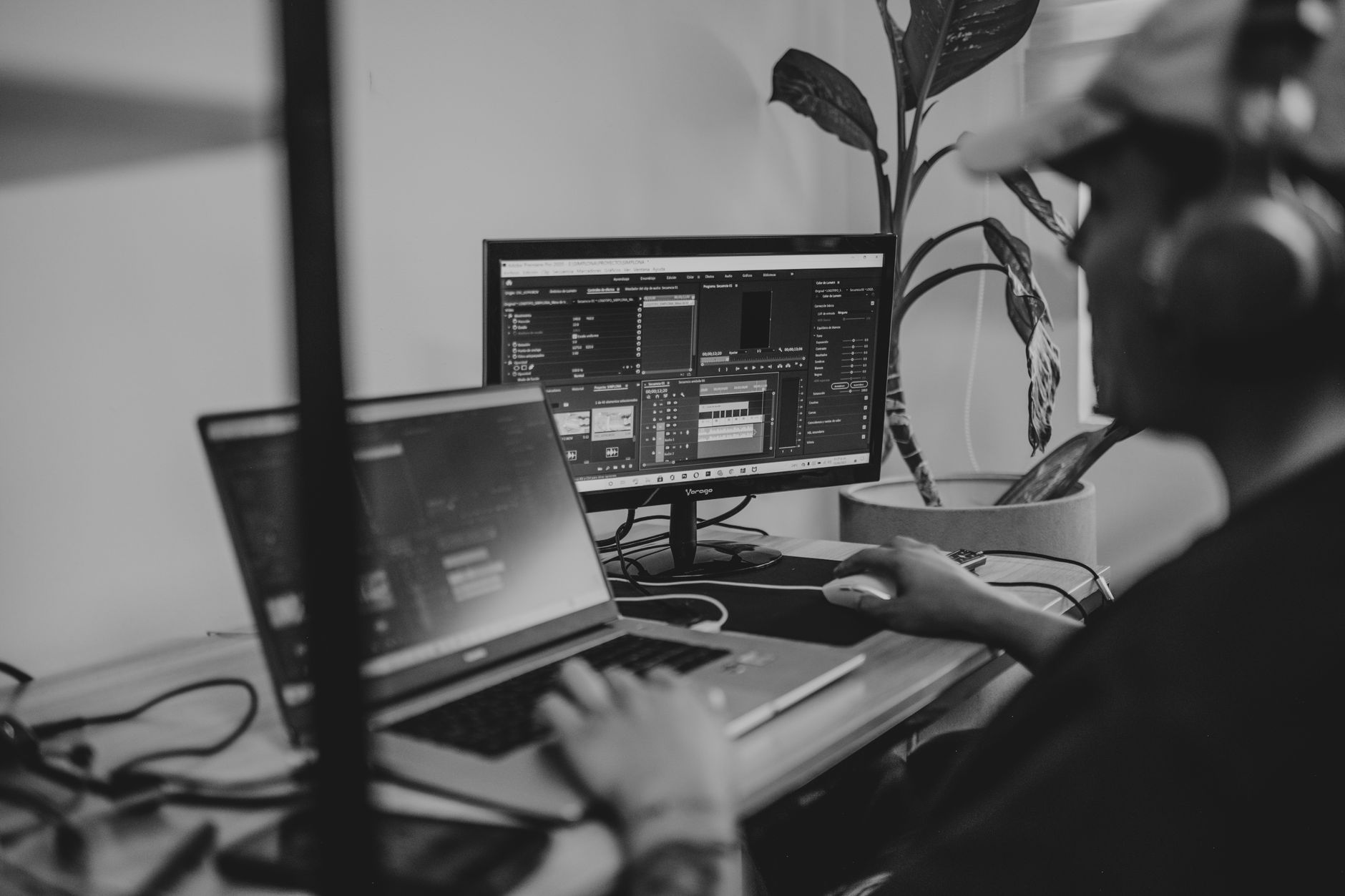
Lyric videos are the fastest way to give your song a visual presence on YouTube and social platforms. They keep listeners engaged, boost watch time, and give fans something to share before you shoot a full music video. Best part: you don't need motion graphics experience or expensive software to make one that looks clean.
Here's how to build, time, and publish a lyric video in one afternoon.
Step 1: Prepare Your Lyrics and Audio
Start with a clean, final mix of your track. Export it as a WAV or high-quality MP3. If you're still writing or tweaking lyrics, finish that first—changing words mid-edit wastes time. If you need help generating or refining lyrics quickly, AI songwriting tools can speed up the process.
Type out your lyrics in a plain text file. Break them into the exact chunks you want on screen—usually one or two lines at a time. Mark sections (verse, chorus, bridge) so you know where transitions happen. This becomes your script.
Double-check spelling, capitalization, and punctuation. A typo in a lyric video looks sloppy and kills credibility.
Step 2: Choose Your Video Editor
You need software that handles text overlays, timing, and simple motion. Three solid options:
- DaVinci Resolve (free): professional-grade, steep learning curve, best if you plan to make multiple videos
- iMovie or Clipchamp (free): beginner-friendly, limited motion controls, good for static or simple animations
- Descript (paid, free trial): text-based editing, automatic transcription, fastest workflow if you're editing both audio and video
Pick based on your comfort level. If you've never edited video, start with iMovie or Clipchamp. If you want more control over timing and effects, DaVinci Resolve is worth the time investment.
Step 3: Build Your Background
Lyric videos need a background that doesn't compete with the text. Four approaches that work:
- Solid color or gradient: clean, easy, keeps focus on lyrics
- Blurred or dimmed photo: add visual interest without distraction (album art, artist photo, or abstract image)
- Looping video clip: subtle motion (clouds, city lights, vinyl spinning) adds energy without overwhelming the text
- Stock footage: free sites like Pexels or Pixabay have HD clips you can loop
Avoid busy backgrounds with lots of detail or contrast. If viewers are squinting to read the lyrics, you've lost them.
If you're planning a full-scale music video later, a lyric video is a smart placeholder. Check out how to make a music video on a small budget for next-level visuals once you're ready.
Step 4: Add and Time Your Lyrics
This is where most people waste time. Here's the efficient method:
Import your audio into the editor. Scrub through and mark where each lyric phrase starts. Most editors let you add markers or split the timeline—use these to map out your text cues before you start typing.
Add your first text block. Set the in-point where the vocal starts and the out-point just before the next phrase. Play it back. The text should appear a split second before the vocal hits, giving viewers time to read ahead. This is critical—late text feels off-beat and frustrating.
Repeat for every phrase. Copy and paste text layers to save time on formatting. Adjust timing as you go. Expect this to take 60–90 minutes for a three-minute song.
For sections with rapid-fire delivery—like fast rap flows—you have two options: shrink the text size and show more words at once, or keep the pace and let words flash quickly. Test both and see what feels natural.
Step 5: Pick Fonts and Motion
Font choice sets the tone. Match it to your genre:
- Hip-hop, drill, trap: bold sans-serif, all caps, high contrast (white on black, or neon on dark)
- Pop, indie, singer-songwriter: clean sans-serif or handwritten style, lowercase or sentence case
- Rock, metal: heavy block fonts, distressed textures, high-impact colors
- R&B, soul: elegant serif or script, softer colors, subtle shadows
Stick to one or two fonts max. Use color and weight to highlight key words or emphasize hooks. For example, great rap hooks often get a different color or animation to make them pop.
For motion, less is more. Three simple animations that work:
- Fade in/out: smooth, unobtrusive, works for any genre
- Slide or push: text enters from the side, keeps energy moving
- Scale or bounce: text grows or shrinks on beat hits, adds punch without distraction
Sync motion to the beat. If your chorus drops hard, make the text hit at the same moment. If the song is mellow, keep motion subtle. Watch your video on mute—if the text animation feels random, it's not locked to the music.
Step 6: Export and Upload
Export settings matter. Use these specs for YouTube and social:
- Resolution: 1920×1080 (1080p) minimum
- Frame rate: 24, 30, or 60 fps (match your editor's default)
- Codec: H.264 (MP4)
- Bitrate: 8–12 Mbps for 1080p
Most editors have a "YouTube 1080p" preset. Use it. Avoid over-compressing—blurry text looks amateur.
Upload to YouTube first. Fill out the title, description, and tags. Add your song to streaming platforms if you haven't already—here's how to get your music on Spotify. Link the Spotify or Apple Music URL in your YouTube description so viewers can stream the full track.
For social media, export a second version in 1:1 (square) or 9:16 (vertical) for Instagram and TikTok. Crop the background and reposition text so it fits the frame. Post a 15–60 second clip as a teaser, then direct people to the full video on YouTube.
Where to Post Your Lyric Video
YouTube is your anchor. It's searchable, embeddable, and the second-largest search engine after Google. Optimize your video title and description with your song name, artist name, and "lyric video" or "official lyrics."
Cross-post to:
- Instagram: 60-second preview in-feed, full video on IGTV or Reels
- TikTok: 15–30 second hook or chorus, use trending sounds to boost reach
- Facebook: native upload (better reach than YouTube links)
- Twitter: 60-second clip with a call-to-action to watch the full video
Pin the YouTube link in your bio and stories. Tag collaborators, producers, and any brands or locations mentioned in the song. Engagement in the first 24 hours drives the algorithm, so post when your audience is online and ask them to comment or share.
Frequently Asked Questions
How long does it take to make a lyric video?
Expect 2–4 hours for a three-minute song: 30 minutes for setup and background, 90 minutes for timing and text, 30–60 minutes for motion and polish, and 15 minutes for export. Your second video will go faster once you have a template.
Can I monetize a lyric video on YouTube?
Yes, if you own the master recording and composition. Upload through a distributor like DistroKid, TuneCore, or CD Baby to collect ad revenue. If you don't own the rights, the copyright holder can claim or block the video.
Do I need to credit stock footage or fonts?
Check the license. Most free stock sites (Pexels, Pixabay) don't require attribution, but some do. For fonts, free-for-commercial-use licenses (like Google Fonts) are safe. Avoid pirating premium fonts—designers will notice and call it out.
Once your lyric video is live, you've got a shareable asset that works 24/7. If you're still refining your lyrics or want to write faster, try SONIQ's AI songwriting tools to draft and polish your next track.
Related reading
- How to Make a Music Video on a Small Budget (Step by Step)
- How to Make a Music Video with AI (Complete Workflow)
- How to Get Your Music on Spotify: Step-by-Step Guide
Photo by Amar Preciado on Pexels